Publish to your social networks from Zapier with Sofia
Sofia is now in the Zapier app directory: you can publish, schedule and follow your social media posts from any Zap, without writing code. This guide walks through the connection and a first Zap you can reproduce.
Contents
Why connect Sofia to Zapier
Zapier connects the tools you already use: a form, an online shop, a spreadsheet, a booking tool. Sofia publishes to your social networks and checks each network’s rules before sending. Together, what happens in your business can become a post, with nobody copying and pasting.
A few Zaps to start with:
- A new row in a spreadsheet becomes a scheduled post: handy for a weekly menu or a list of events.
- A new product in your shop is announced on your networks as soon as it goes on sale.
- A post refused by a network sends a message to your team, so someone fixes it the same day.
Connect your Sofia account
The integration authenticates with a personal key. A key acts for you on every Workspace you are a member of: a single connection reaches all your establishments.
- In Sofia, open the settings, “Sofia API” page, “Personal access” tab, and create a key. Copy it right away: it is shown only once.
- In Zapier, create a Zap, search for “Sofia” among the apps, and choose a trigger or an action.
- When Zapier asks for an account, paste the key into “Personal key”. Zapier tests it and confirms the connection.
Your first Zap: schedule a post
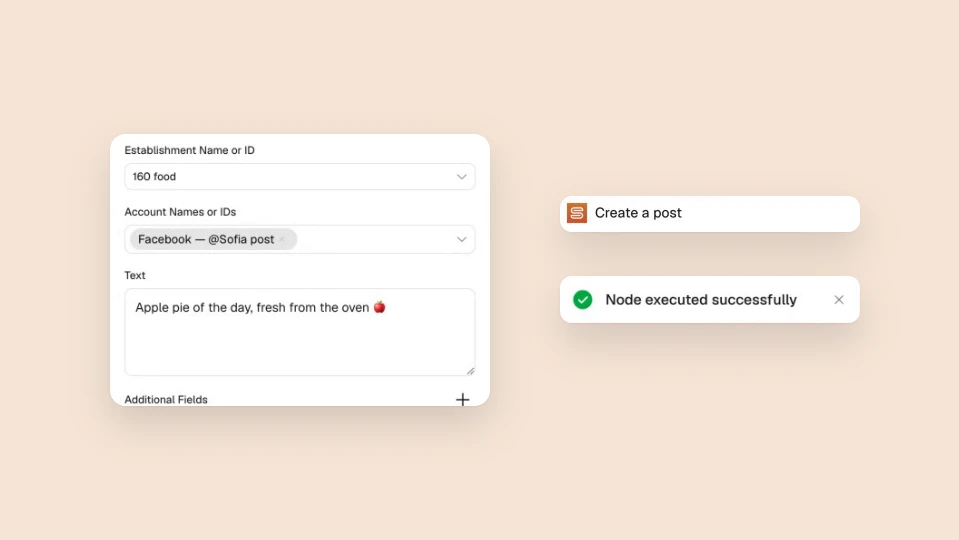
Take a restaurant announcing its dish of the day. Add a “Sofia” step, choose “Create Post” and fill it in:
- “Establishment”: choose yours from the list, filled from Sofia.
- “Accounts”: select the networks to publish on. Each account you choose receives a post, with the same text.
- “Text”: write the post, or map a field from the previous step, for example a spreadsheet cell.
- Add “Media URLs” for a photo or a video, and “Schedule at” for the date. Leave the date empty to publish now, or turn on “Draft” to save without publishing.
React when a post goes live or fails
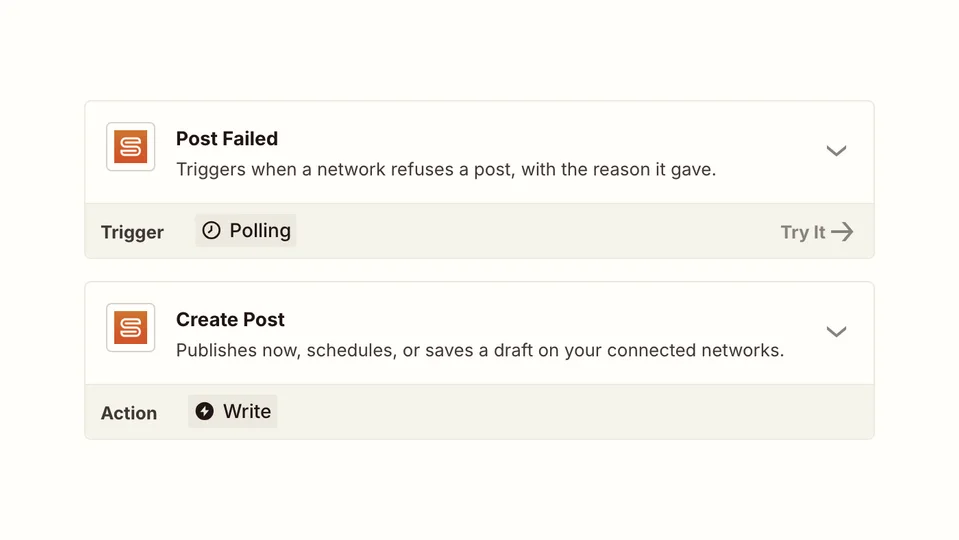
Two triggers start a Zap: “Post Published” when a post goes out on at least one network, “Post Failed” when a network refuses it. Connect them to Slack, an email or a spreadsheet, and your team knows what happened without opening Sofia.
The triggers check Sofia at regular intervals. To read a post at any time, the “Find Post” search returns its status, its link and the response of each network.
With Sofia in Zapier, publishing becomes one step of your automations like any other. The Zapier guide of the Sofia documentation describes the integration’s operations and its errors.